 AutoCut
Make the cut land with the music.
Choose a song and its section, then build a montage around the detected rhythm.
Available in the AutoCut iPhone app
Start with a reason to edit.
A cut that falls between musical accents can feel disconnected from the track. Choosing a section first gives the edit a stronger foundation.
A travel montage with a musical change
Select a song section, choose travel clips and build the sequence around the beat. Review how the arrangement changes as the track gains energy.
A montage whose timing works with the selected audio.
Try this workflow with your own footage.Three steps to your version.
Choose your music
Pick a library track or import your own audio.
Choose the section
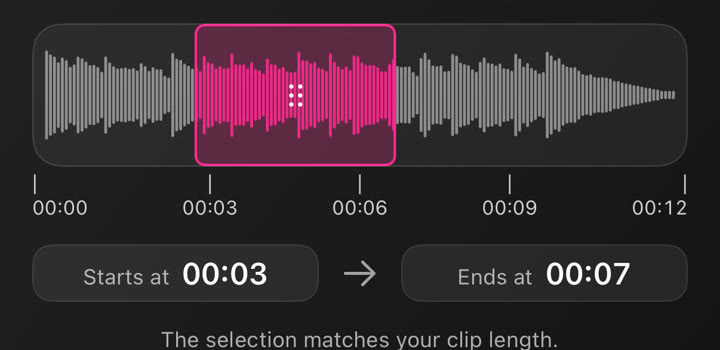
Start from the beginning or adjust the start and end of the song section.
Build and preview
Choose your media and review the cuts against the music.
Your song section
The selected section gives beat analysis the part you actually want to use.
Visual variety
Combine different shots so each cut adds something new.
Editable timing
Use the editor to refine the montage after the automatic starting point.
A walkthrough worth keeping.
Works well with…
 9
 5
 1
Grid Flow
Combine grid arrangements and full-frame moments in a music-driven edit.
Music & Audio Editing
Choose music, use your own audio and adjust the selected section in your project.



 AutoCut
 Montages
Turn a selection of photos and videos into a montage using compatible AutoCut templates.
Can I use Sync the Beat in my browser?
The feature runs in AutoCut for iPhone. The website provides examples, template previews and instructions.
Can I review the result before sharing?
Preview the finished result in the app and use the available editing controls to check the media, timing and appearance.
Does this feature require a purchase?
Access varies by tool and subscription. Generation features may also use credits. Check the current in-app screen and purchase details before you start.