 AutoCut
A little more life in the light.
Apply automatic tonal and color corrections to a photo while keeping its geometry.
Available in the AutoCut iPhone app


Start with a reason to edit.
A useful image can look flat or uneven when placed next to the rest of your project.
A travel image, balanced for the edit
Choose a photo that needs a tonal adjustment. Apply Enhance and compare it with the original before keeping the correction.
A corrected image that keeps the original framing.
Try this workflow with your own footage.Three steps to your version.
Select a photo
Open Enhance with the image you want to improve.
Apply the correction
Let the local photo enhancement process adjust tone and color.
Compare in context
Check the image alongside the other media in your project.
Tone and color
Automatic adjustments focus on the image’s appearance.
Keep the framing
Enhance does not automatically crop or level your photo.
A finishing choice
Use the result when it supports the mood of the rest of the edit.
Enhance is a photo adjustment tool, not a video upscaler or a way to recover missing image detail.
Works well with…
 Amber
 Blue
 Mono
Photo & Video Filters
Give your media a coordinated visual treatment with the available filters.
 Travel
 Coffee
 Fashion
Video Templates
Explore editable video templates for travel, products, fitness, celebrations and everyday moments.
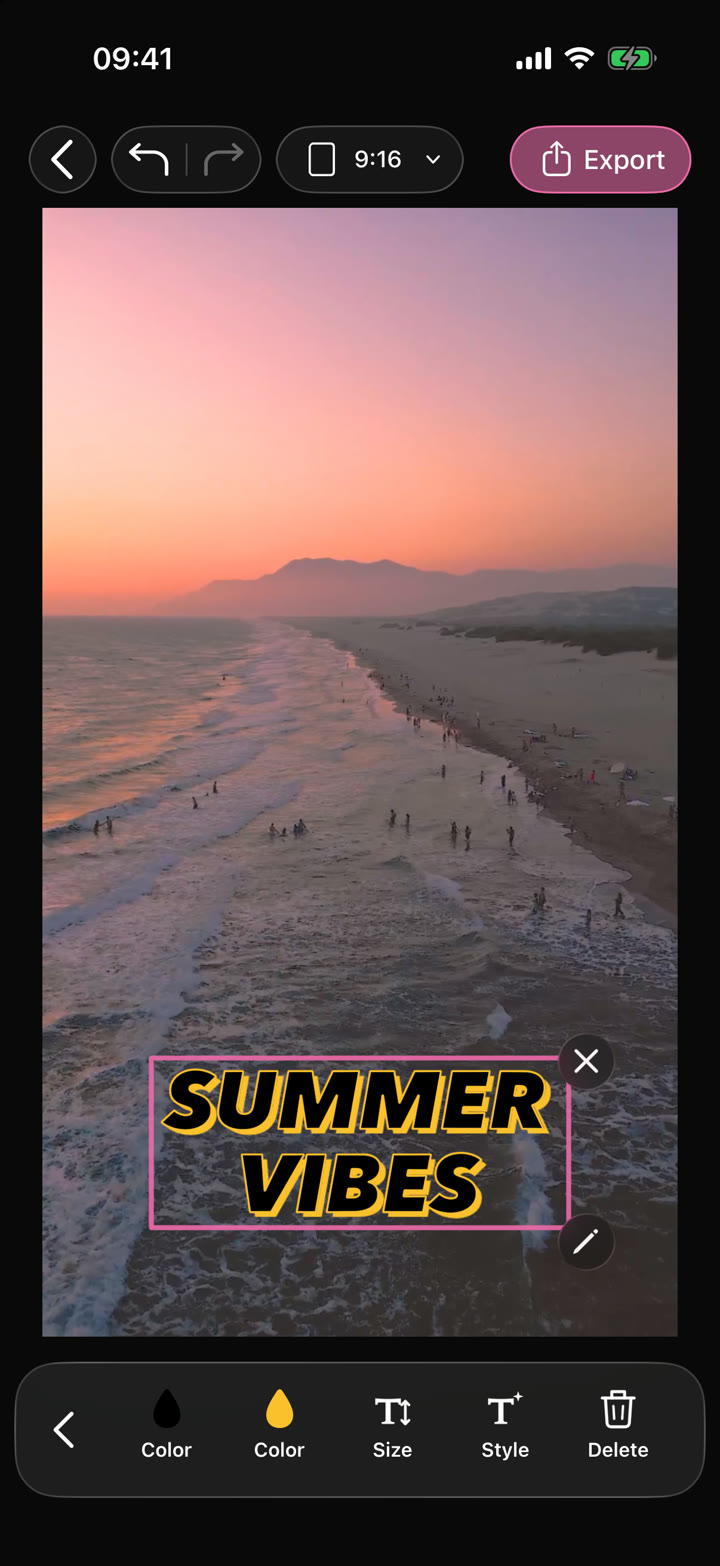
Your edit.Text · Audio · Effects
Video Editor
Shape your video with precise timing, expressive text, stickers, transitions and sound. Start from scratch or make an automatic edit your own.
Can I use Enhance Photos in my browser?
The feature runs in AutoCut for iPhone. The website provides examples, template previews and instructions.
Can I review the result before sharing?
Preview the finished result in the app and use the available editing controls to check the media, timing and appearance.
Does this feature require a purchase?
Access varies by tool and subscription. Generation features may also use credits. Check the current in-app screen and purchase details before you start.