 AutoCut
Text & captions
Words that look like you.
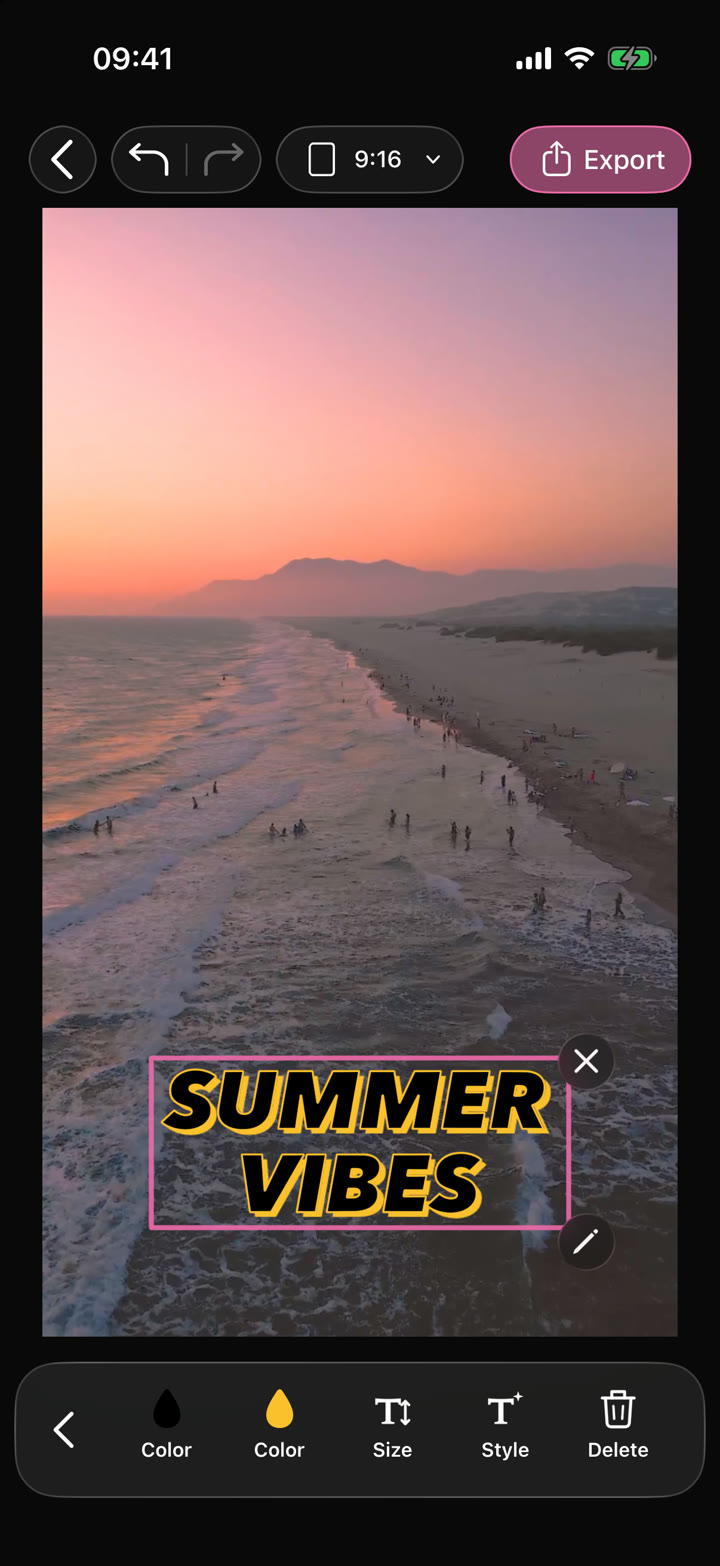
Choose a caption style, preview it over your video and refine the words. For titles and other text, adjust the font, size, colors and placement.
Explore caption styles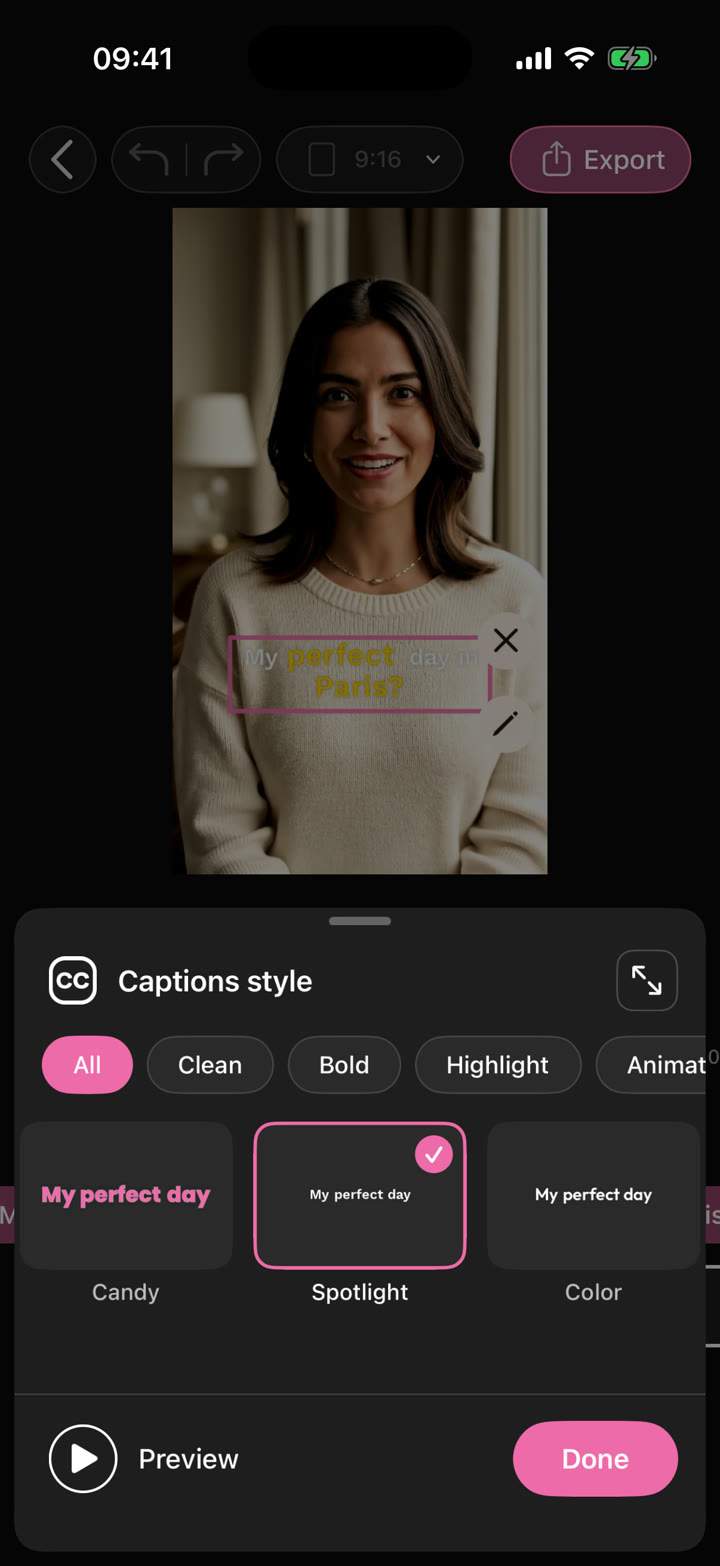
Shape your video with precise timing, expressive text, stickers, transitions and sound. Start from scratch or make an automatic edit your own.
Available in the AutoCut iPhone app
See the controls you will actually use in AutoCut for iPhone. Tap any screenshot for a closer look.
Choose a caption style, preview it over your video and refine the words. For titles and other text, adjust the font, size, colors and placement.
Explore caption stylesSearch the graphics library, add a sticker or GIF, or bring in a logo. Place it over your footage and adjust when it appears in your project.
Explore animated stickers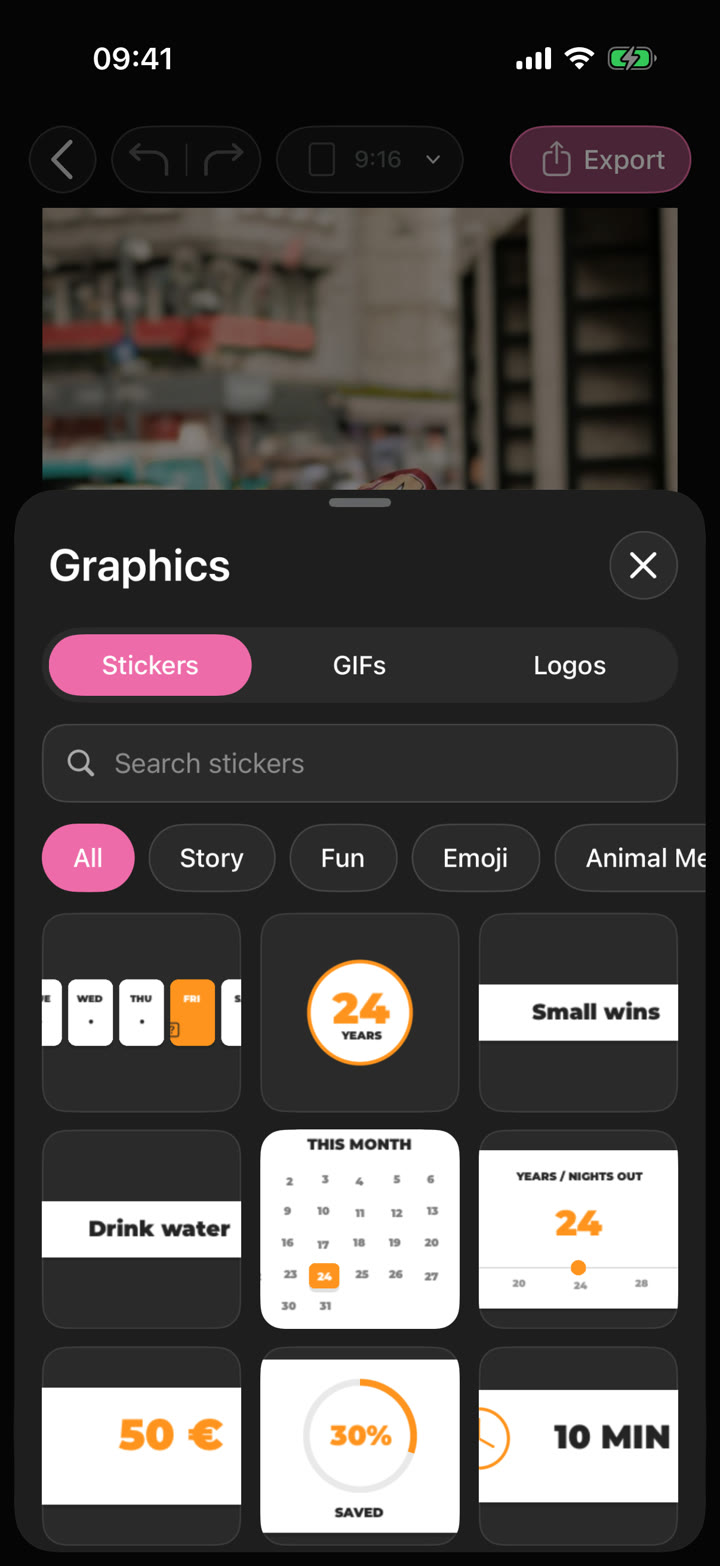
Preview a transition between shots, adjust its duration and apply it across the edit. Supported transitions also offer a sound toggle.
Explore transitions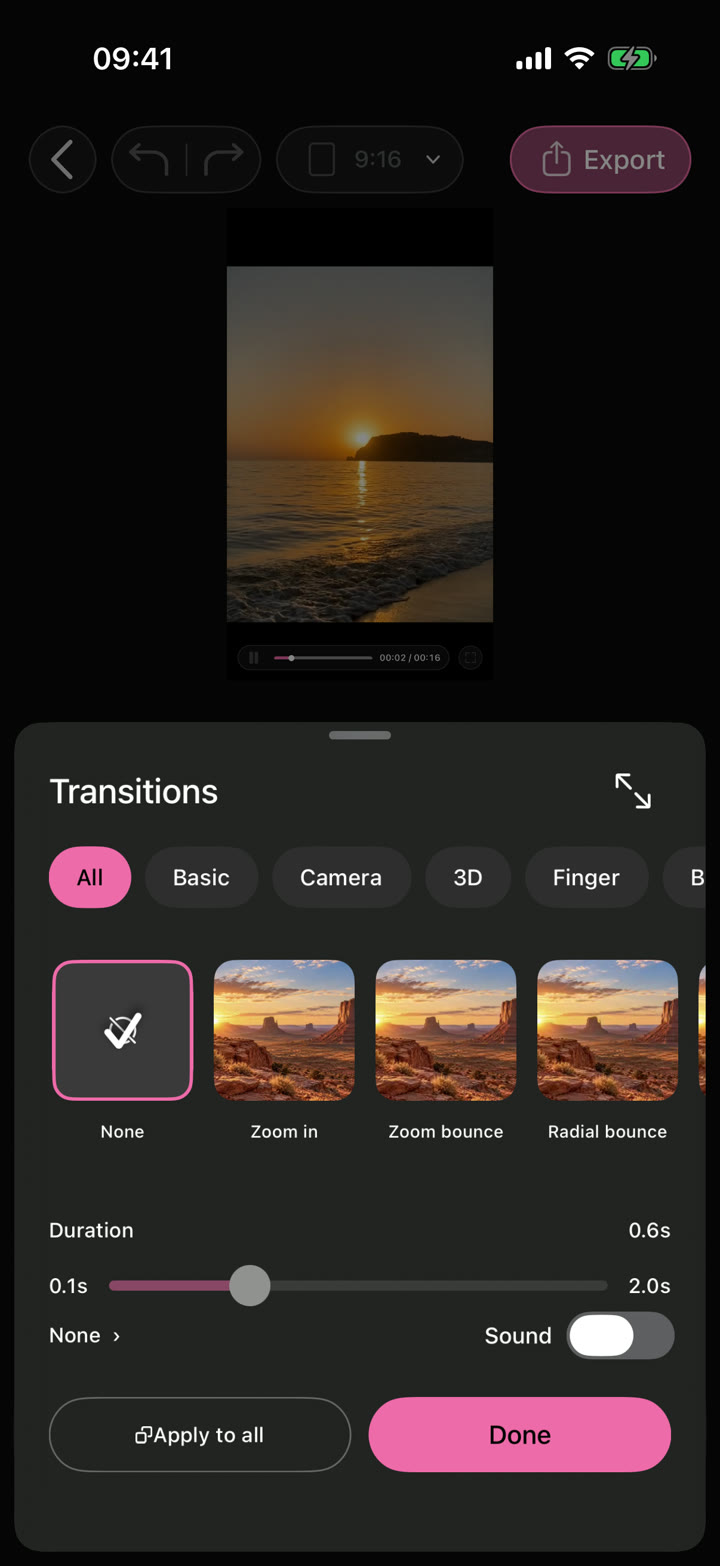
Slide the highlighted section across the waveform, listen to a preview and use the part that fits your clip. In the editor, choose Music or record a Voiceover while the video plays.
Explore music & audio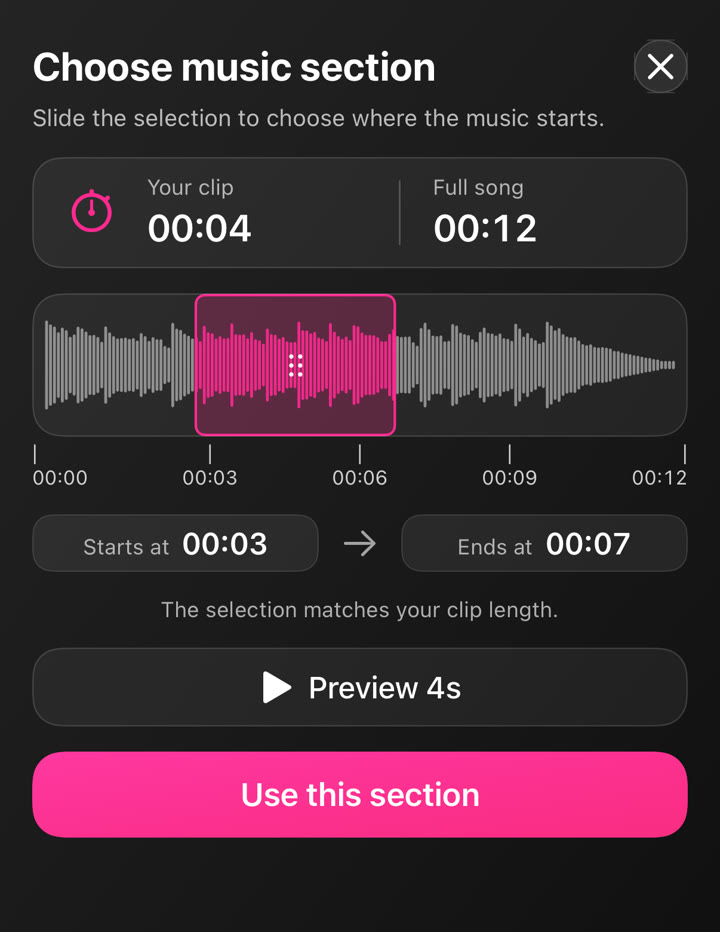
The preview shows the result. The timeline controls the timing. The tools follow your selection.
Open a template, an AutoCut result or a new project with your own photos and videos.
Choose a clip, text, graphic or audio item to open the controls for that element.
Use the timeline and duration controls to decide when elements appear and how long they last.
Check the video, words and sound as one sequence, then export when the edit feels right.
Shorten a clip, split it into parts or swap the media while refining your sequence.
Select an element to adjust when it appears and how long it stays on screen.
Style titles with fonts, colors, size and ready-made text treatments.
Change the look of your footage with image filters, color controls and video effects.
Change the pace of a shot or reverse it to create a different kind of movement.
Add a soundtrack, choose its section or record your own narration over the video.
Choose a project ratio and fit or crop the footage for your final frame.
Play the result as you work and use undo or redo to refine your choices.
Review the full sequence, choose the available export settings and save or share the result.



Shorten media, split a section at the playhead and combine the moments you want to keep.
 Fit your format
Change the composition and project ratio for the platform or presentation you need.
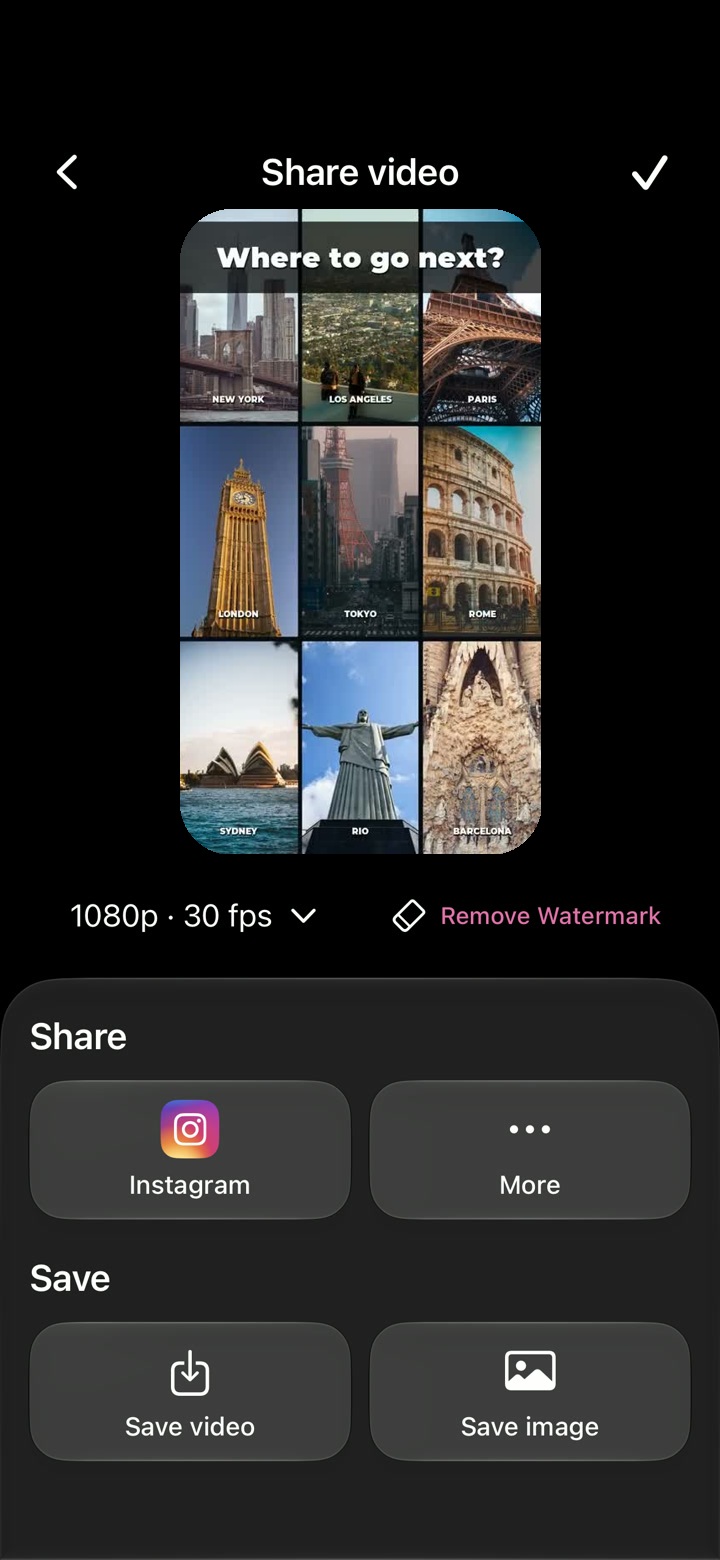
Preview your project and choose the available resolution and frame rate before saving your video.
The feature runs in AutoCut for iPhone. The website provides examples, template previews and instructions.
Preview the finished result in the app and use the available editing controls to check the media, timing and appearance.
Access varies by tool and subscription. Generation features may also use credits. Check the current in-app screen and purchase details before you start.