 AutoCut
Give the moment a different pace.
Adjust the speed of a video or reverse it for a different playback effect.
Available in the AutoCut iPhone app
Start with a reason to edit.
A long movement might work better quickly, while a small gesture can deserve more time in the edit.
An action clip with a change of pace
Choose a movement with a clear beginning and end. Compare playback speed options and use reverse only when the motion makes sense backwards.
A timing treatment chosen around the actual action.
Try this workflow with your own footage.Three steps to your version.
Choose the clip
Select a video with movement that supports the effect.
Adjust playback
Use the speed or reverse option available for the selected media.
Review sound and timing
Check how the change affects the rest of the edit.
Choose useful movement
Water, movement and repeated actions often make the treatment easy to see.
Watch the duration
A speed change also changes how long the media lasts.
Check the audio
Listen to the project after changing the motion.
Works well with…



Trim, Split & Merge
Shorten media, split a section at the playhead and combine the moments you want to keep.

Sync the Beat
Choose a song and its section, then build a montage around the detected rhythm.
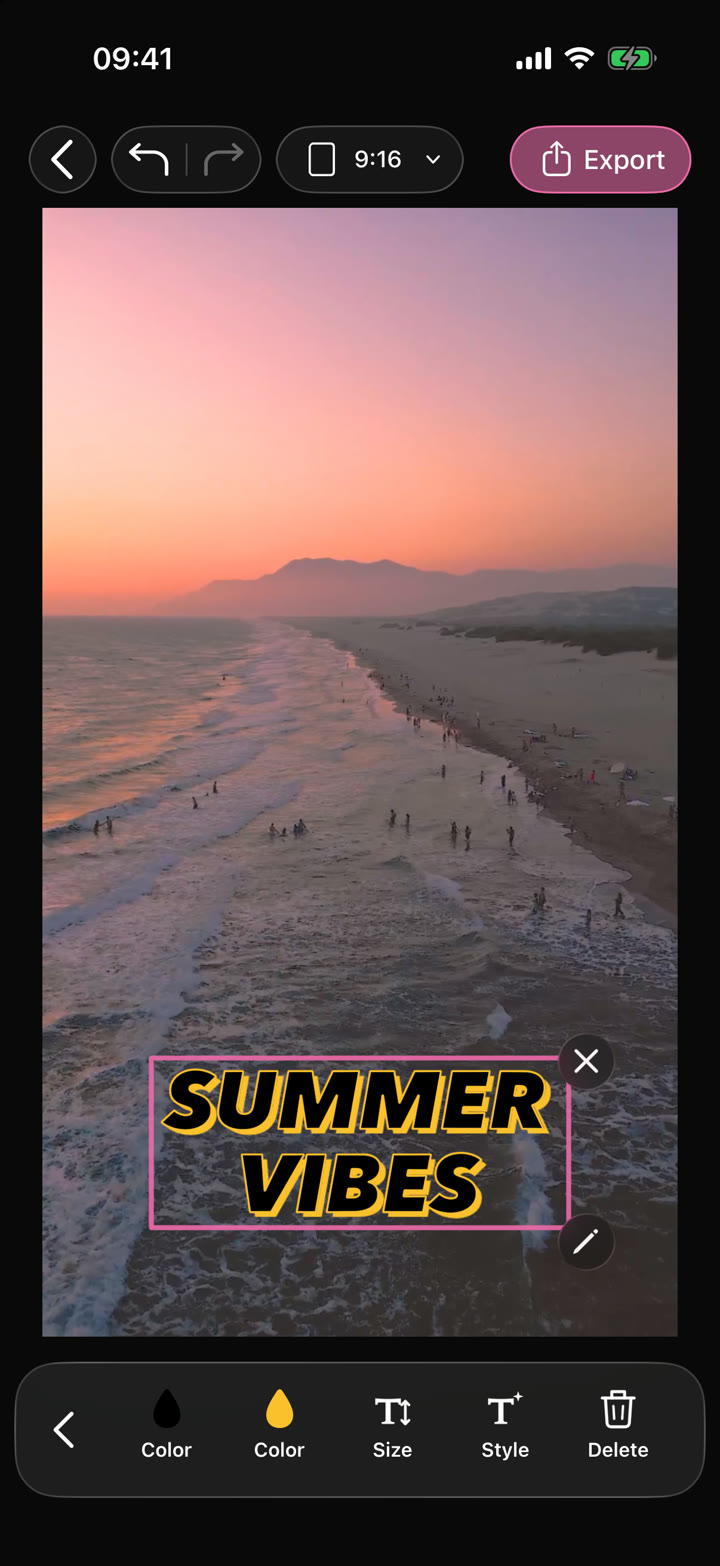
Your edit.Text · Audio · Effects
Video Editor
Shape your video with precise timing, expressive text, stickers, transitions and sound. Start from scratch or make an automatic edit your own.
Can I use Video Speed & Reverse in my browser?
The feature runs in AutoCut for iPhone. The website provides examples, template previews and instructions.
Can I review the result before sharing?
Preview the finished result in the app and use the available editing controls to check the media, timing and appearance.
Does this feature require a purchase?
Access varies by tool and subscription. Generation features may also use credits. Check the current in-app screen and purchase details before you start.