
Your ideas. Your footage. Your next edit, on iPhone.
Creative details · Animated Text

Give your words an entrance.

Choose an animated text style, make the words yours and time the title to your video.

Available in the AutoCut iPhone app

Typewriter · a style preview with custom words

Start with a reason to edit.

A title should enter when it helps the story and stay readable over the picture. Start with a short message, then choose the movement, placement and duration around it.

A practical example

Typewriter: make every moment yours

In this style preview, a short title appears letter by letter over a beach photograph. Recreate the idea with your own media, select Typewriter and replace the words with your message.

A title that reveals gradually, holds for reading and fades away.

Try this workflow with your own footage.
Make it on iPhone

Step by step to your version.

01

Open your footage

Start an editor project with a photo or video. For this example, choose a beach photograph with space for a title.

02

Add a Typewriter title

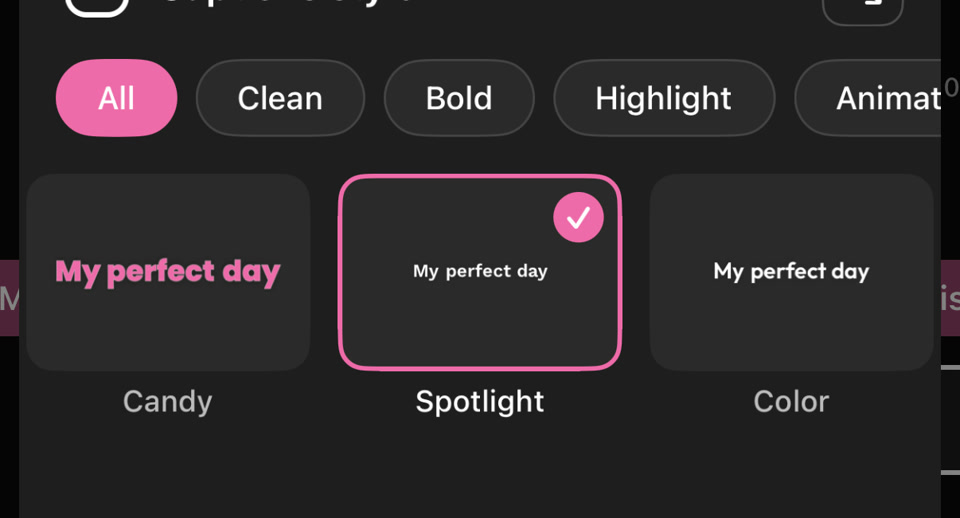
Open Text, browse the text styles and choose Typewriter for a letter-by-letter reveal.

03

Write your message

Edit the words to “Make every moment yours.” Keep the title short and split it across two lines if needed.

04

Make it readable

Set the font, size and color. Place the text over a quieter part of the picture; the example uses white lettering.

05

Set its place in the timeline

Move the text item to the moment it should appear and trim its duration. Leave a pause after the last letter so the complete title can be read.

06

Play, review and export

Preview the whole section, adjust the placement or duration, then export the finished video.

Choose the movement first

Typewriter reveals letters in sequence. Other text styles offer different entrances; preview a style before committing to it.

Personalize the title

Use your own wording and adjust the available font, size, color and alignment controls.

Place it deliberately

Keep faces, products and other important details clear. Use the timeline to decide when the title belongs in the story.

Follow the example

One title. A clear entrance.

The preview uses a beach photograph and a short Typewriter title. The words start appearing after 0.8 seconds, stay on screen long enough to read, then fade out. This is a rendered illustration of the style, rather than a recording of the app.

Inside the iPhone editor

The words and the look are yours.

Select the text element to open its controls. Edit your words, choose a font, change the color and size, and preview the animation over your own footage.

This real editor screenshot shows a different title, “Summer Vibes”, to illustrate the text controls. Choose Typewriter for the letter-by-letter effect shown above.

Explore the editor ↗
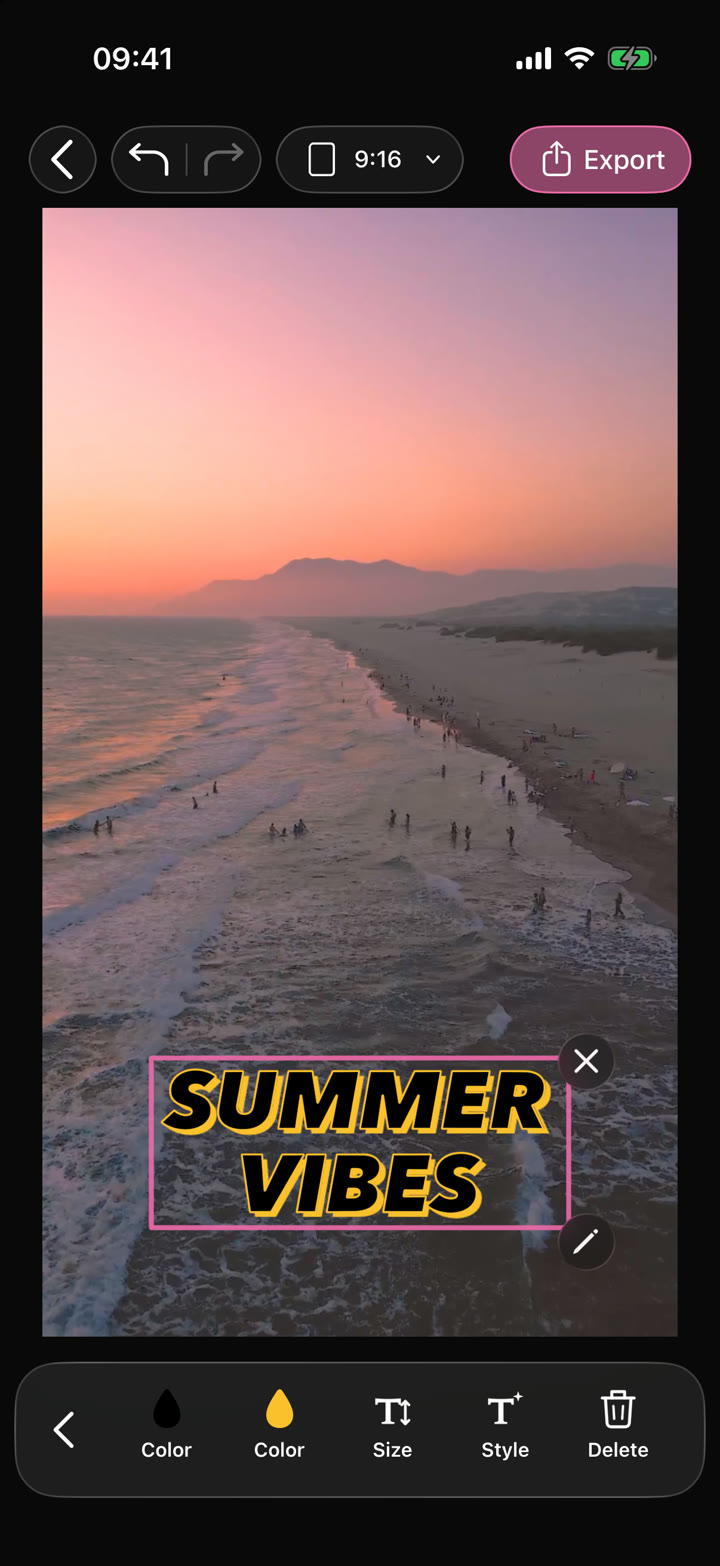
AutoCut iPhone editor with a selected Summer Vibes title and its text editing controls
Before you export

Give every word time to land.

Short enough to read

Use one brief thought. A long sentence takes longer to reveal and can distract from the picture.

Visible over the whole shot

Check the title over both bright and dark parts of your footage. Adjust the color and placement if it becomes hard to read.

Leave a reading pause

Keep the finished title visible after the final letter appears. Play the complete section before exporting.

Can I use Animated Text in my browser?

The feature runs in AutoCut for iPhone. The website provides examples, template previews and instructions.

Can I review the result before sharing?

Preview the finished result in the app and use the available editing controls to check the media, timing and appearance.

Does this feature require a purchase?

Access varies by tool and subscription. Generation features may also use credits. Check the current in-app screen and purchase details before you start.

Take it to your phone

Your next edit
starts on iPhone.

Scan the code with your iPhone camera to open AutoCut on the App Store.

QR code linking to AutoCut on the App StoreOpen the App Store

Availability, compatibility and purchase options are listed on the App Store.