 AutoCut
A frame that fits where you share.
Change the composition and project ratio for the platform or presentation you need.
Available in the AutoCut iPhone app
Start with a reason to edit.
A landscape image, a portrait video and a square layout leave different amounts of room for the subject and text.
A wider shot prepared for a portrait post
Choose a portrait output, adjust the visible part of the original shot and move the title out of the subject’s way.
A composition designed for the selected format.
Try this workflow with your own footage.Three steps to your version.
Choose the ratio
Use the project format control to select the frame you need.
Reposition the media
Check which part of the original image remains visible.
Review every layer
Adjust captions, titles and graphics for the new composition.
A new ratio changes space
Check more than just the main photo when you resize.
Keep the important detail
Choose a crop that makes the subject clear.
Use Reframe for motion
AI Reframe is an alternative when the subject moves through the original shot.
Works well with…
 16:9
 9:16
AI Reframe
Adapt a video to a new aspect ratio while following people or action and choosing from the layouts you allow.




PHOTO + VIDEO
Grid Maker
Arrange photos and videos into a grid or split-screen composition.
Share.
Done.1080p · 30 fps
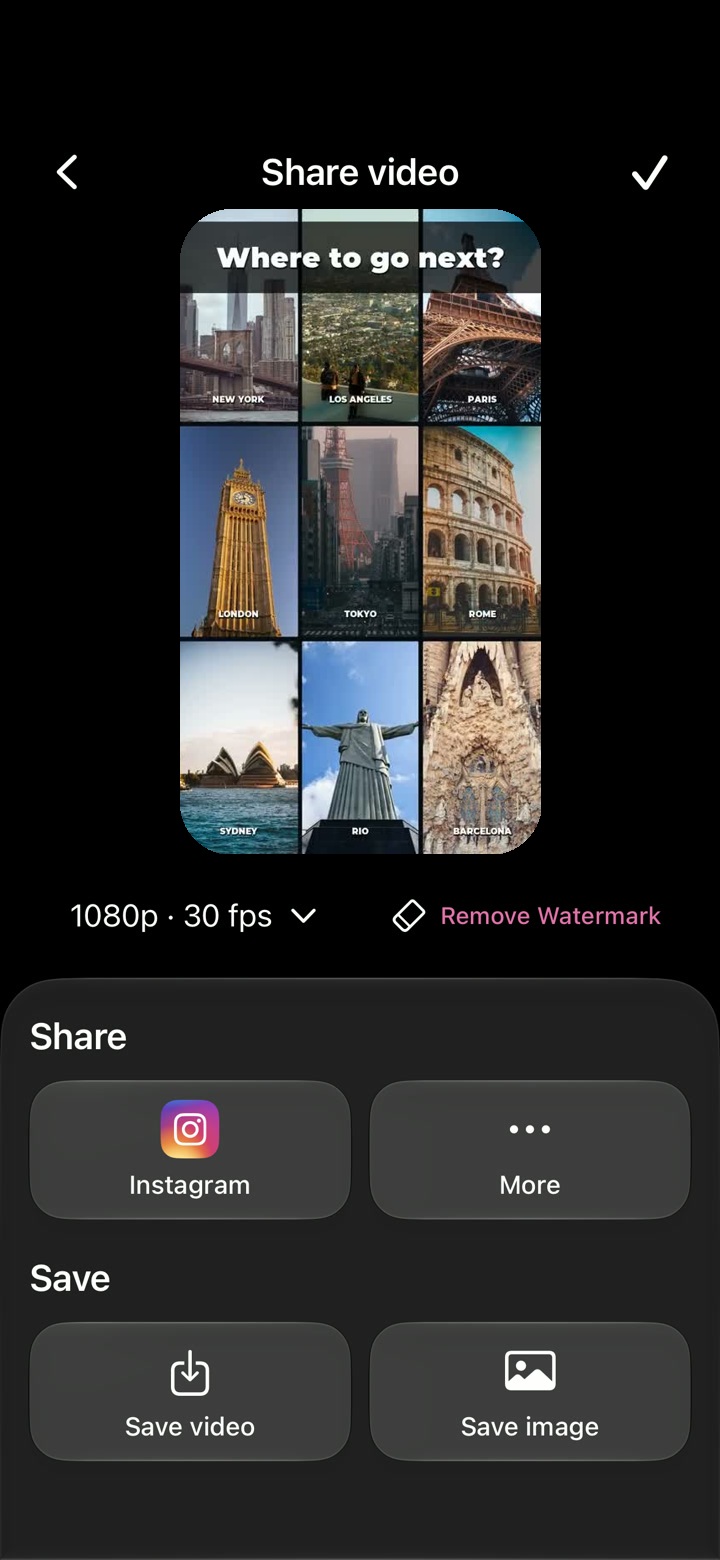
Video Export
Preview your project and choose the available resolution and frame rate before saving your video.
Can I use Crop & Resize in my browser?
The feature runs in AutoCut for iPhone. The website provides examples, template previews and instructions.
Can I review the result before sharing?
Preview the finished result in the app and use the available editing controls to check the media, timing and appearance.
Does this feature require a purchase?
Access varies by tool and subscription. Generation features may also use credits. Check the current in-app screen and purchase details before you start.