 AutoCut
Play your project, then tap Export.
Check the full sequence in the editor, including text, transitions and sound. Use the Export button at the top when you are ready.
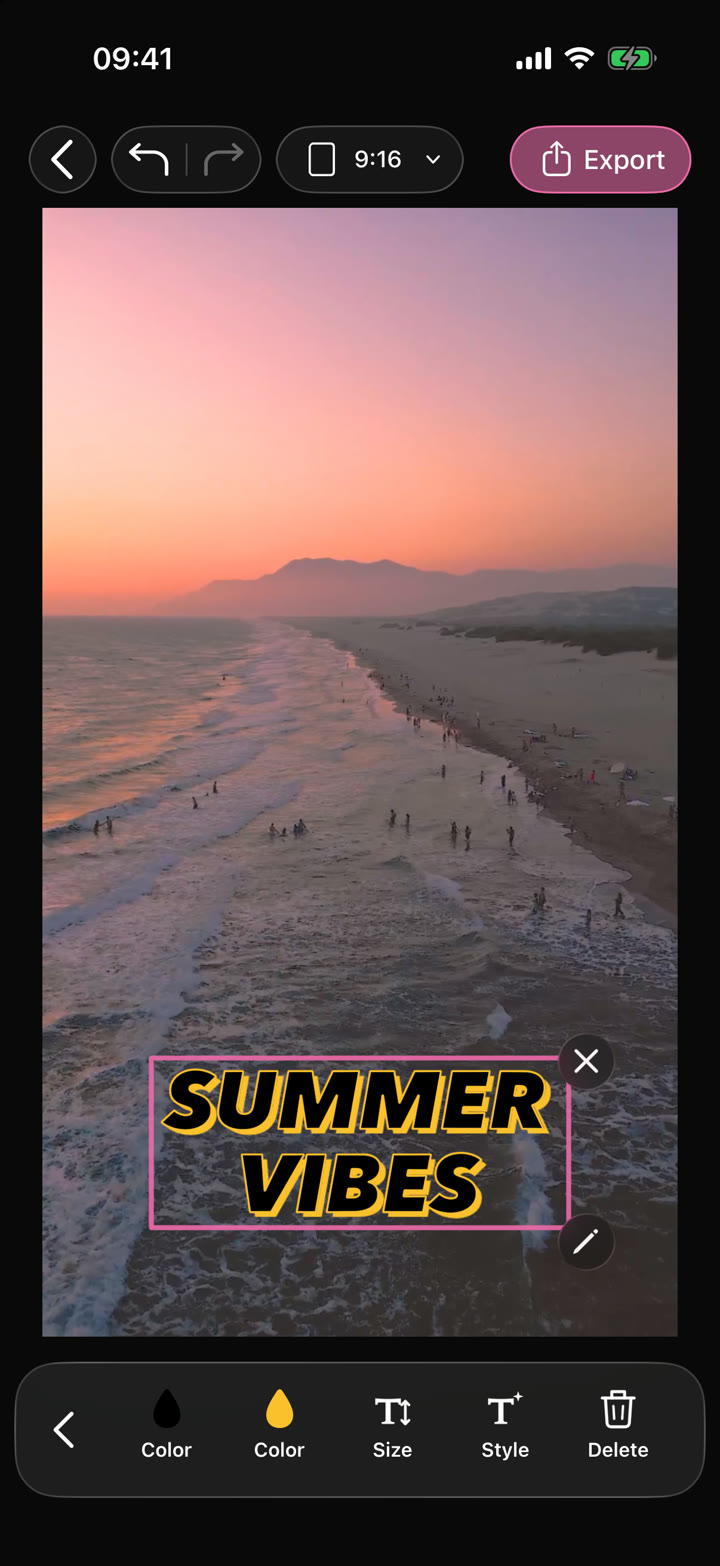
Preview your project and choose the available resolution and frame rate before saving your video.
Available in the AutoCut iPhone app
The edit is not finished until you have checked the whole video and chosen settings that fit its source and purpose.
Review the captions, transitions and audio from beginning to end. Choose an export setting appropriate for the source material and save the result.
A finished video file you can share from your iPhone.
Try this workflow with your own footage.Check the beginning, ending, text and sound.
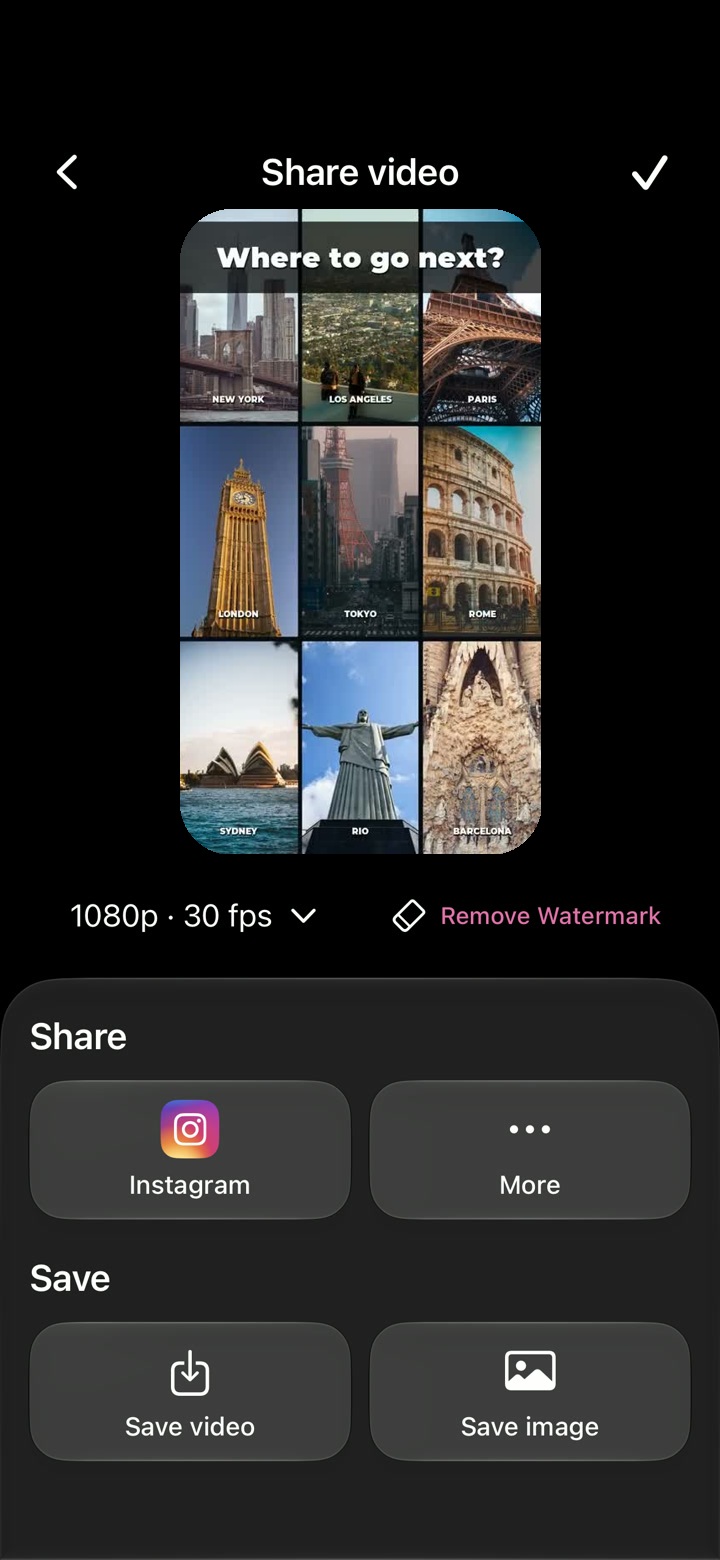
Select from the resolution and frame-rate options available in the app.
Export the video and share it to your chosen destination.
The export screen offers 720p, 1080p and 4K options.
Available choices include 24, 30 and 60 fps.
A larger output setting does not recreate detail missing from the original media.
Access and export behavior depend on the project and subscription. Export time varies with device, resolution, duration and effects.
Follow the actual iPhone screens from the editor to your finished video.
Check the full sequence in the editor, including text, transitions and sound. Use the Export button at the top when you are ready.
On the Share video screen, tap the quality control below the preview. The current options are 720p, 1080p or 4K, and 24, 30 or 60 fps. Changing quality exports the video again.
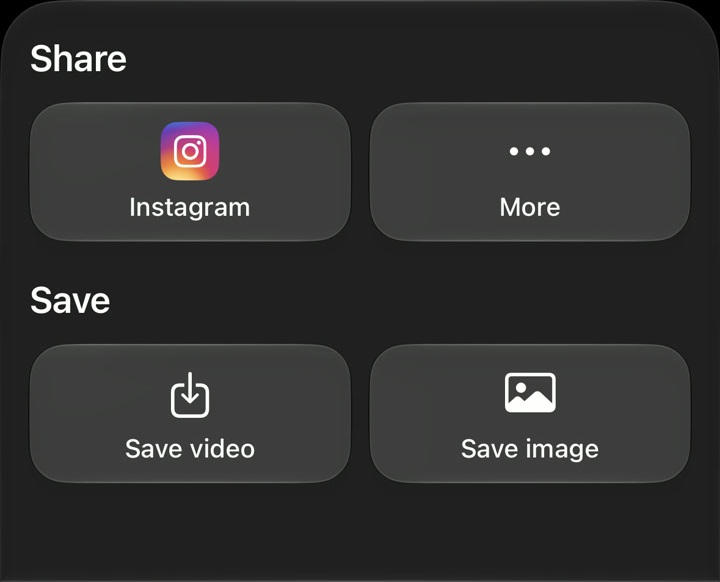
Save video to Photos, save a still image or share through Instagram or More. More opens the iPhone share options available on your device.
Shape your video with precise timing, expressive text, stickers, transitions and sound. Start from scratch or make an automatic edit your own.
 Fit your format
Change the composition and project ratio for the platform or presentation you need.
 Travel
 Coffee
 Fashion
Explore editable video templates for travel, products, fitness, celebrations and everyday moments.
The feature runs in AutoCut for iPhone. The website provides examples, template previews and instructions.
Preview the finished result in the app and use the available editing controls to check the media, timing and appearance.
Access varies by tool and subscription. Generation features may also use credits. Check the current in-app screen and purchase details before you start.